
Preparing the domain
Set CNAME of @ / root to traefik.1streward.com
Bypass cache for admin
(http.cookie contains “wordpress_logged_in_”) or (starts_with(http.request.uri.path, “/wp-admin”)) or (http.request.uri.path eq “/wp-login.php”)
Cache everything else
Installing myPhPAdmin
Look for the Service UUID. It is the part after the @ in MySQL URL. This will be my PMA_Host for wordpress, and Host/ IP for phpMyadmin.
Create a new mysql user in phpMyadmin, generate password and grant specific database privilege to this user. Remember to username and password.
Install wordpress without database.
Docker Compose file should be edit to include the directory where backup files will be uploaded
– ‘/data/coolify/backups/wordpress/[Folder Name]:/var/www/html/wp-content/updraft’
Remember to update WordPress and Site address to https after installation

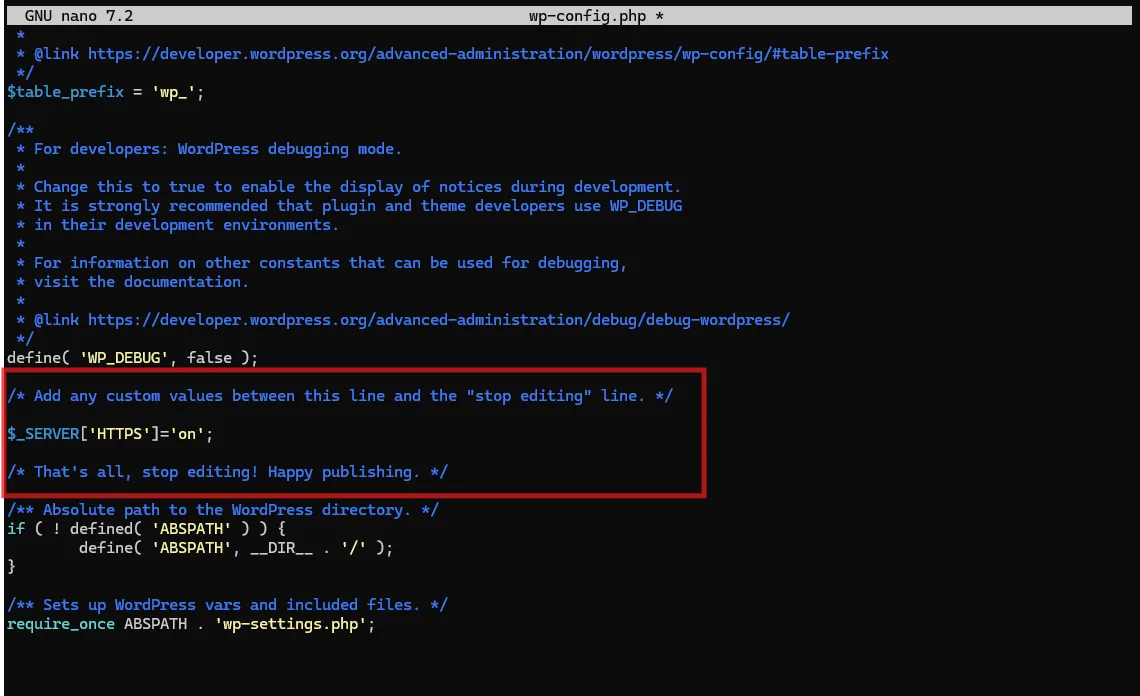
add $_SERVER['HTTPS']='on'; in specific section of the file wp-config.php, Use apt update && apt install nano nano wp-config.php or copy paste the code below
If migration fails, check file permission for backup files. Most likely file permission isn’t www-data
change permission for files in wp-content/updraft. Mind the dot in the end of command
# 1. Set Ownership for everything here sudo chown -R root:www-data .
# 2. Set Permissions for everything here sudo chmod -R 775 .
Update .htaccess to increase max file size
About the author : Zoom N. Dang